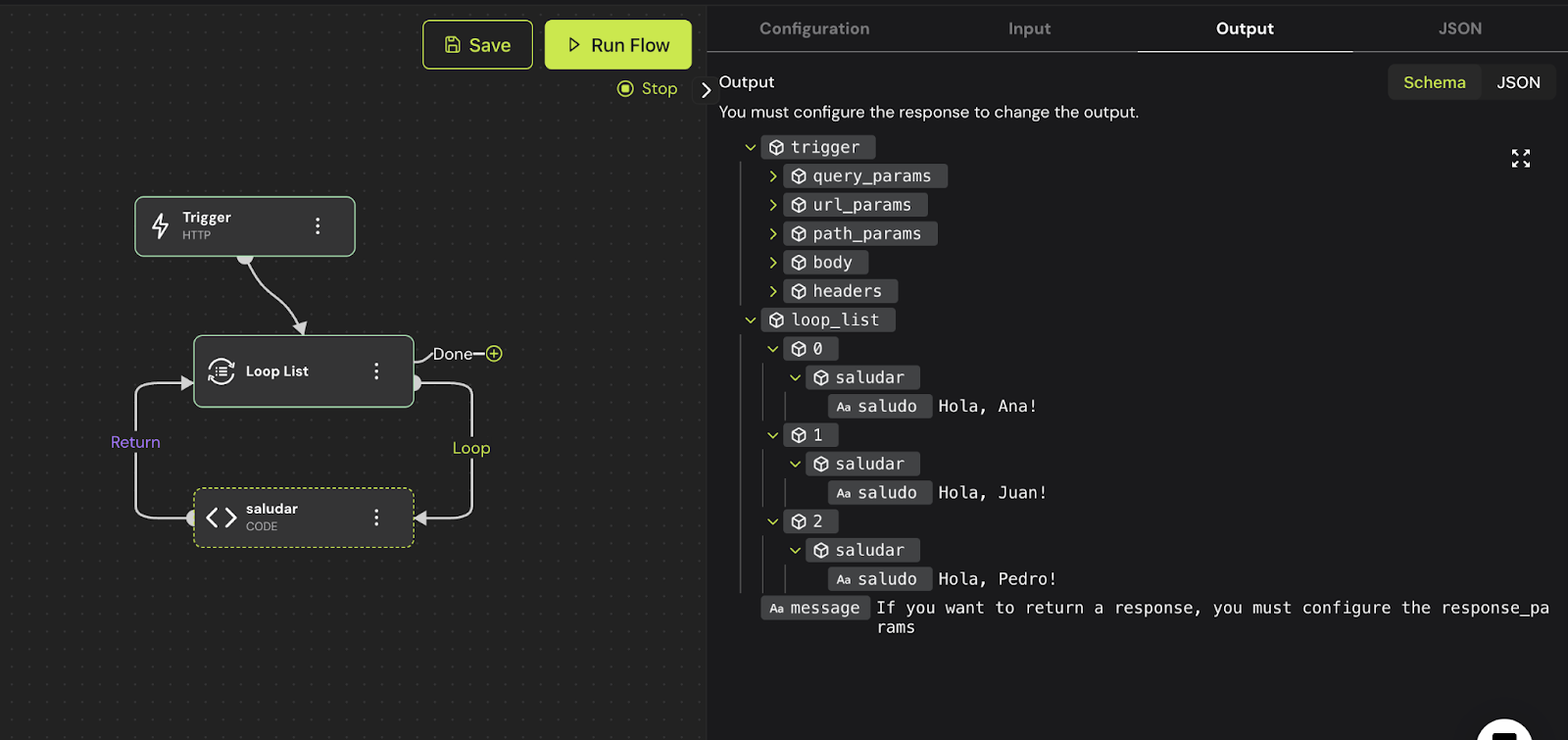
# How to Loop a List in Your Workflow
### Iterating Over a List of Elements with Loop List
The **Loop List** feature allows you to iterate over each item in a list of elements.
**Iterating with Loop List: Automate Repetitive Tasks**\
Do you have a list of contacts to whom you need to send personalized emails? Or perhaps you need to update the status of multiple sales opportunities? Loop List is the perfect node for this task.
Think of a shopping list: a Loop List works by iterating through that list, item by item, to perform a specific action for each product. In Pro Automator, this allows you to repeat an action for every element in a list, automating tasks that would otherwise be tedious and repetitive.
In this tutorial, you’ll learn how to:
* Create a list of elements
* Configure a Loop List
* Customize actions for each item
* Use accumulators to collect results
**Get ready to take your automation to the next level!**
***
### What Is a Loop List?
A Loop List is a tool that allows you to process each item in a list, one by one. Think of it as iterating through a shopping list and performing an action for each product. In programming, it enables repeating a task for every item in a list.
***
### How to Configure It:
1. **Create a List**: Ensure you have a list of elements you want to process.
2. **Add a Loop List Node**: Drag and drop the Loop List block into your workflow.
3. **Connect the List**: Link the output of your list to the input of the Loop List.
4. **Define the Actions**: Inside the Loop List, place the blocks that will execute for each item.
#### Example: Greeting Each Name in a List
Imagine you have a list of names: `["Anna", "John", "Peter"]`. You can use a Loop List to greet each person with the following steps:
1. Iterate through each name.
2. Display a message: `"Hello, {{item}}!"`
Output:
* "Hello, Anna!"
* "Hello, John!"
* "Hello, Peter!"
***
#### Steps to Automate Tasks with Loop List
1. **Define a List**: Create a list of elements to process. This could be done directly in your trigger or in a previous node. For example, a contact list from HubSpot or a CRM.
2. **Prepare the Input Tab**: Go to the input tab and set up your list. Ensure it’s properly formatted and ready to use.
3. **Add a Loop List Node**: Drag and drop a Loop List node into the workflow scene.
4. **Connect the List**: Link or reference your list to the Loop List node.
5. **Add an Action**: Inside the Loop List node, define the action to perform for each element. For example, display a greeting like `"Hello, {{item}}!"`.
6. **Test Your Workflow**: Run the workflow to ensure it iterates through each element and performs the defined actions correctly.
7. **Observe the Output**: Verify that the action has been executed for each item in the list. For instance, a greeting message should appear for every contact.
***
#### Using Variables and Accumulators in Loop List
**Variables**
Variables in Loop List allow you to access and manipulate the value of each element in a list during execution. Here are a few ways to use them:
* **Personalization**: Create customized messages, calculate unique values, or make decisions based on the current element.
* **Context**: Add context to each iteration. For example, when processing a list of orders, use a variable to fetch the customer’s name and personalize a thank-you message.
* **Dynamic Flows**: Make your workflows more adaptable to various scenarios.
**Example Using Variables:**
{% code overflow="wrap" %}
```javascript
// In a node with a variable input
{{[loop_name].item.client}} has placed an order for {{[loop_name].item.quantity}} units.
// In a code block, we use the params object
params.[loop_name].item.client has placed an order for params.[loop_name].item.quantity units.
```
{% endcode %}
In this example:
* `loop_name` is the name assigned to your Loop List.
* `item` represents the current value being processed.
* `customer` and `quantity` are properties of the item being accessed.
***
**Accumulators**
Accumulators are powerful tools for transforming and summarizing data as you iterate through a list.
* **Operations**: Perform operations like summing, averaging, concatenating, or adding elements to a new list.
* **Aggregated Results**: Use accumulators to calculate totals, count elements meeting specific conditions, or build a string concatenating values from all items.
* **Data Analysis**: Perform basic data analysis, such as descriptive statistics or pattern recognition.
***
#### Practical Example: Calculating the Average of a List of Numbers
Suppose you have a list of student grades and want to calculate the average. Use an accumulator to perform the following steps:
1. Let’s take a look at the following list.
2. To extract our data, we’ll use an intermediate node called `get_grades` and use its output variable `grade`, which will be accumulated during each pass of the Loop List.
3. We click the **Run Flow** button, and this is the result.
With Loop List, repetitive tasks become effortless, enabling you to process large datasets efficiently. From personalizing products to generating complex reports or sending bulk notifications, the possibilities are endless.